Getting started with Harness Platform
What will you learn in this topic?
- How to access a Harness account?
- How to create organization, projects and invite collaborators?
- How to manage users and shared resources?
- How to become a Harness certified expert?
Before you begin
Setup Harness Platform
Follow the steps below to understand the platform and complete the initial setup so you can start using other Harness modules.
Step 1: Access your Harness account
Sign up for a free account or sign in to your existing Harness account to get started.
Harness provides a free tier of the Platform to help you get started with software delivery.
Harness is offered as SaaS and Self-Managed (on-premises) editions. These offerings are described below.
| SaaS | Self-Managed Enterprise Edition (SMP) | |
|---|---|---|
| What it is | Fully managed, cloud-hosted version of Harness. No infrastructure setup required. | Kubernetes-native deployment that runs on your own public or private cloud infrastructure. See SMP overview. |
| Plans / licensing | Free, Team, and Enterprise. See Subscriptions and licenses. | Requires a valid SMP license key and access to download the Harness SMP software. |
| Get access | Sign up with the Free plan, then sign in. Team/Enterprise accounts are created by invitation from an Account Administrator. | Contact Harness Support to obtain your license key and software download access. |
| Setup | None — Harness manages the infrastructure. | Follow the installation instructions, then sign in at http://YOUR_DOMAIN_NAME/auth/#/signin. |
Step 2: Create organization, project and invite collaborators
Once you have created an account, contact your administrator to get permissions to create organizations and projects.
Create an organization
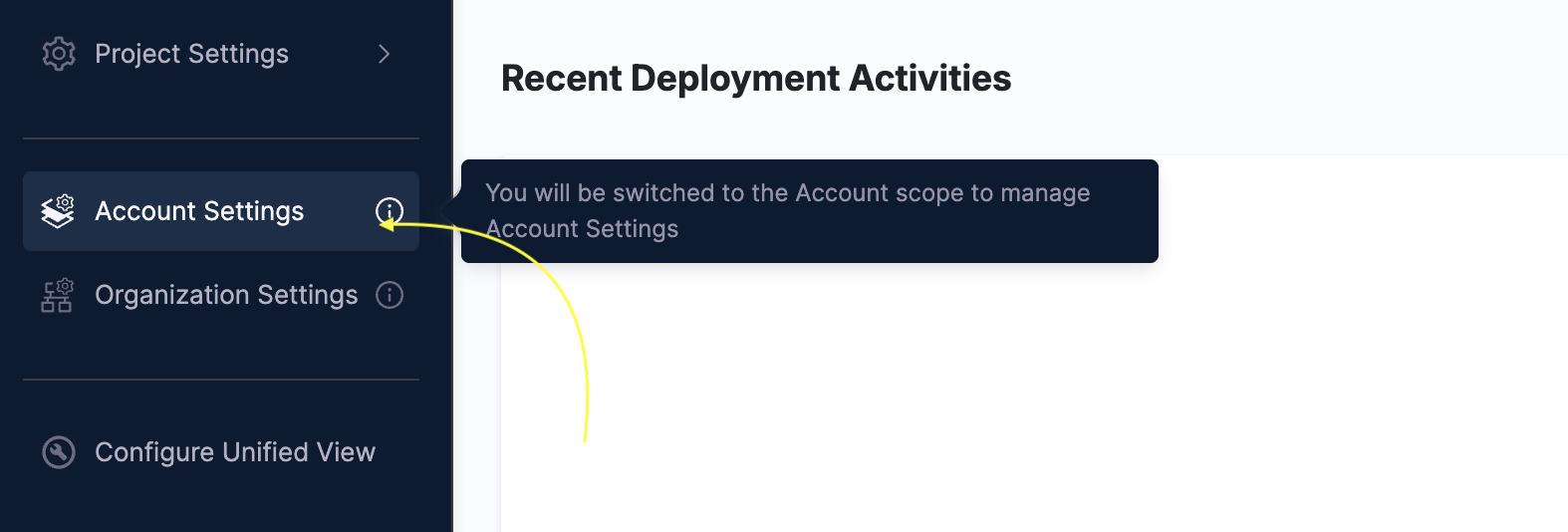
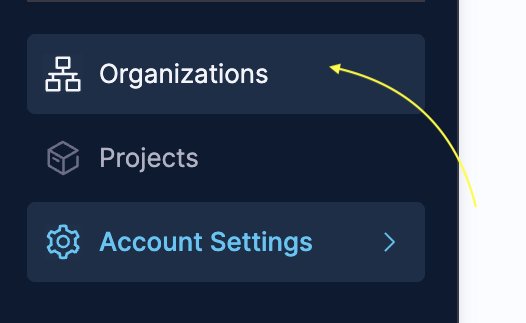
- In Harness, select Account Settings to switch to account scope; the Organizations tab appears on top of Account Settings. Click Organizations.
(OR)
- Click the Account, select Organizations, click View All Orgs, and click Organizations

- Click +New Organization. The new organization settings appear.

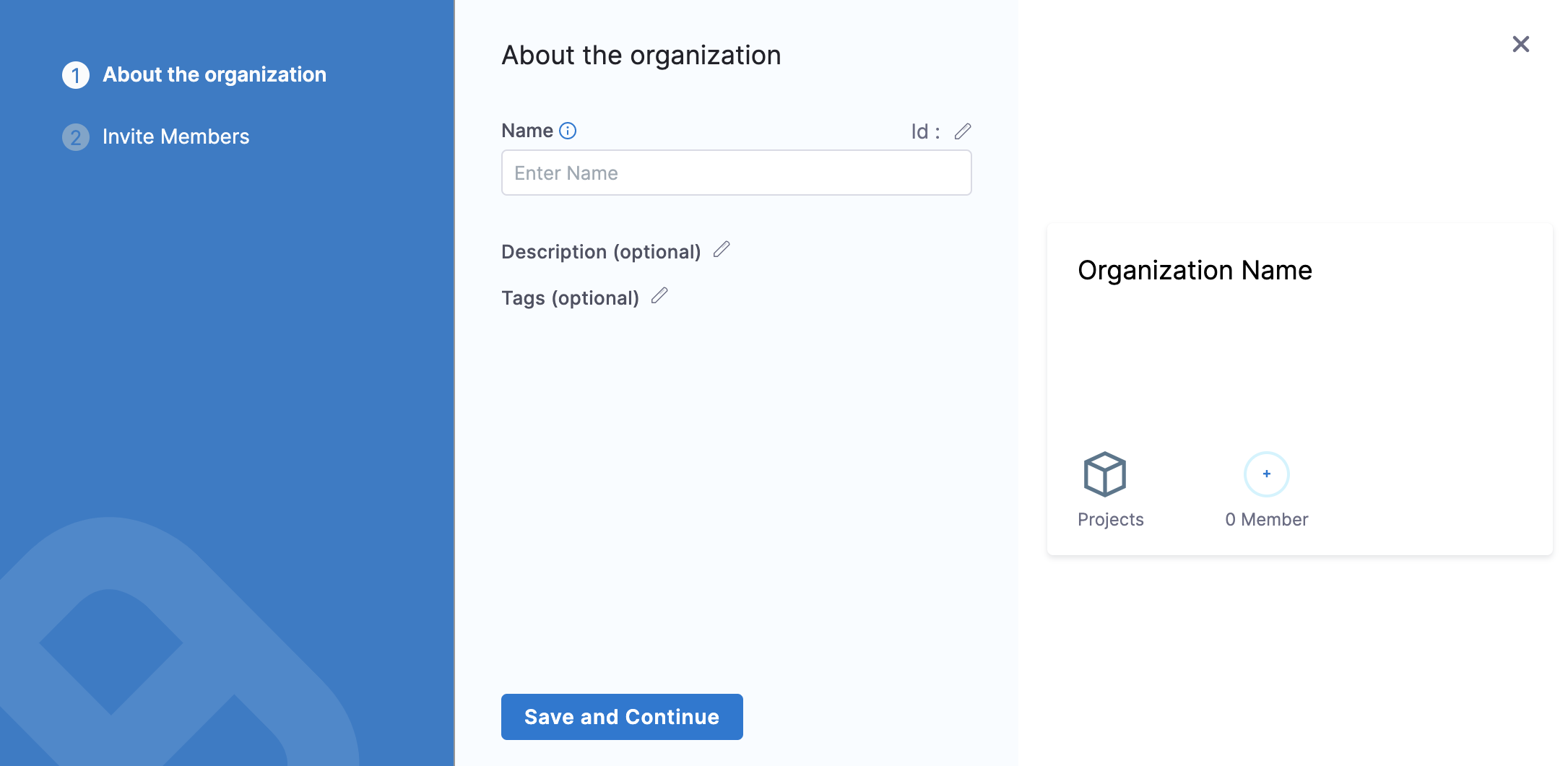
- In Name, enter a name for your organization.
- Enter Description, and Tags for your new org.
- Click Save and Continue.
Invite collaborators
The org and any projects added to it are used by their members only.
You don't have to add the same members to an org and its projects. You can add org-level members, and then add project-level members later when you set up or edit a project.
- Click Organizations, and then select the three-dot menu (⋮) of the org you want to invite people to.
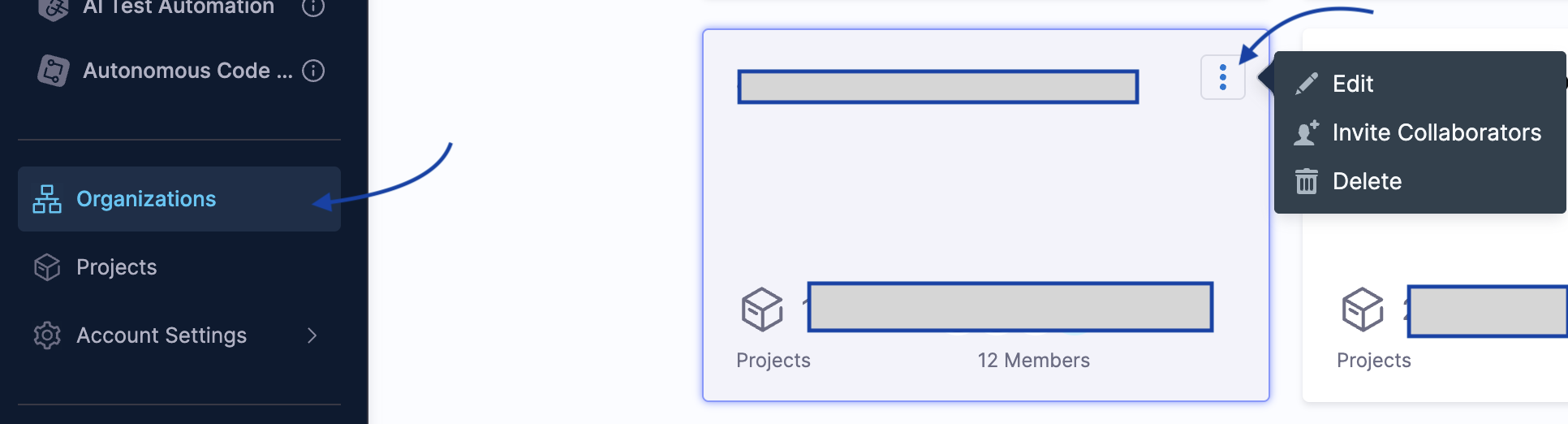
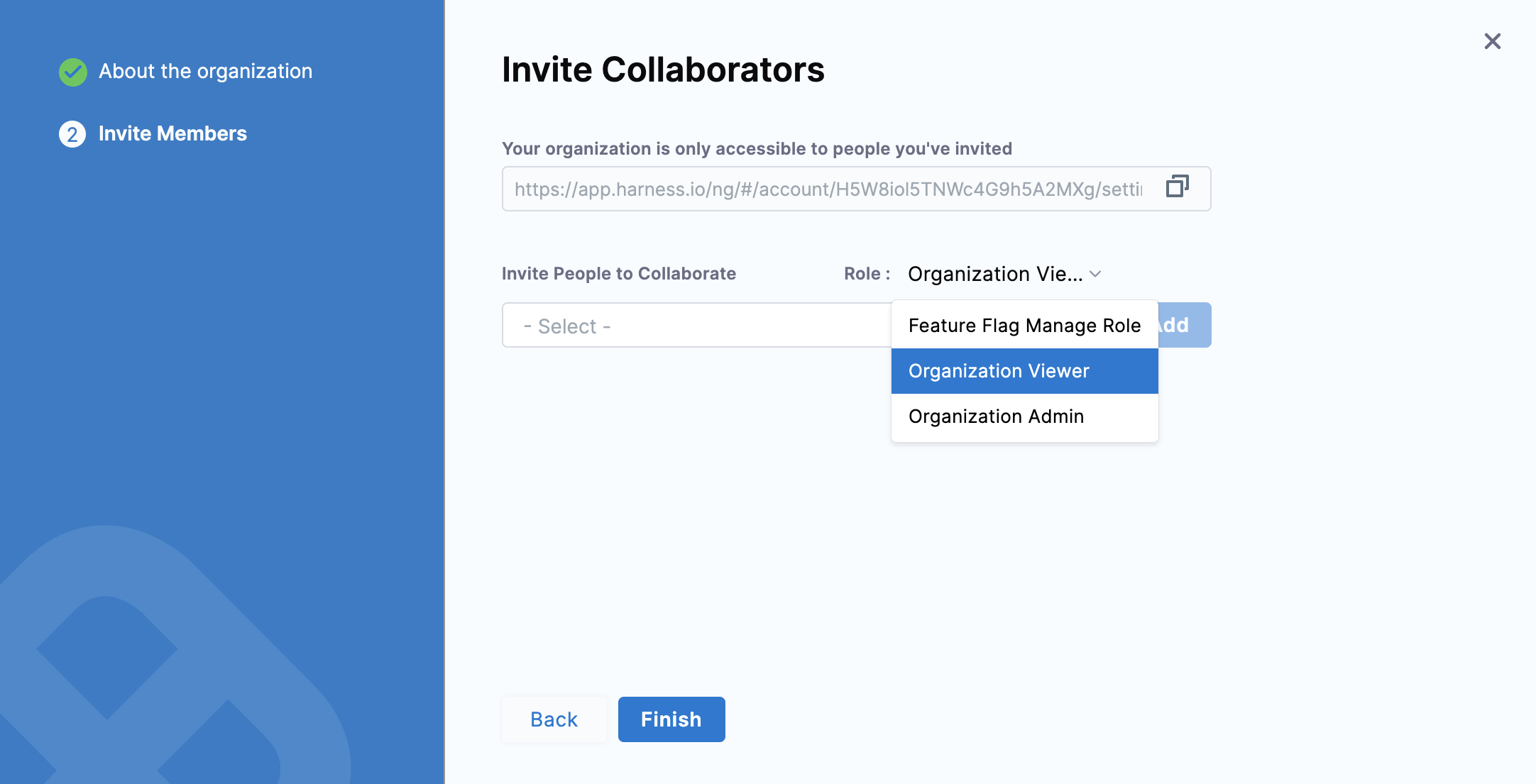
- Select Invite People to Collaborate, type a member's name and select it.
- In Role, select the role the member will have in this org, such as Organization Admin or Organization Member.
-
Click Add.
Members receive invites via their email addresses.
You can invite more members from within the Org later.
-
Click Finish. The Org is added to the list in Account Settings Organizations.
Create a project
You can create Projects in the Org from the projects section of Harness, or from within the org. You'll set up user permissions in the next step.
In this example, you will create projects in Projects.
- In Harness, go to Home and click Projects.
- Click +Project.
- Name the project, and select a color. The Id of the project is generated automatically. See Harness Entity Reference.
- In Organization, select the org you created.
- Add a description and tags, and then click Save and Continue.
- In Invite Collaborators, type a member's name and select it.
- Select a role for the member, and click Add.
- Click Save and Continue to create the project.
You can create additional organizations and projects to represent your business units and product development initiatives.
- Harness recommends creating a sample project with a few pilot users to get familiar with the Platform.
- Once your initial setup is ready, choose a module from the left navigation bar.
Step 3: Manage users
To facilitate fine-grained permissions, configure authentication and role-based access control (RBAC) for your Harness account.
You can also automate user provisioning from external sources, including user group memberships and role assignments. The following methods are supported:
To add users manually, go to add users manually.
Step 4: Manage shared resources
Shared resources are the connective layers between Harness and your infrastructure. Most modules require at least one delegate and a connector to function.
-
Delegate: A lightweight worker you install in your environment (Kubernetes, Docker, VM) that executes tasks on behalf of Harness using outbound-only HTTPS. You don't need one immediately, but you'll need one when running pipelines. For more information, go to Delegates.
-
Connector: Stores credentials and connection information for third-party tools like GitHub, AWS, GCP, and DockerHub. For more information, go to connectors.
-
Secret: An encrypted storage for sensitive values like API keys and passwords. Harness has a built-in secret manager and integrates with Vault, AWS Secrets Manager, and others. For more information, go to secrets.
As an administrator, you can configure shared resources at the account, organization, or project scope, depending on how you want to facilitate their availability.
- For teams managing Harness at scale, you can automate the configuration of shared resources using the Harness Terraform Provider or REST API.
- Shared resources created at the account scope are available to all organizations and projects in your account.
Explore Harness modules
Once the platform is set up, you can start using Harness modules to automate your software delivery lifecycle. Each module is built for a specific part of the software delivery lifecycle (SDLC) and can be used independently or together.
| If you want to | Start with |
|---|---|
| Build and test code automatically | Continuous Integration (CI) |
| Deploy services to any environment | Continuous Delivery & GitOps (CD) |
| Manage cloud infrastructure costs | Cloud Cost Management (CCM) |
| Safely roll out features with flags | Feature Flags (FF) |
| Find and fix security vulnerabilities | Security Testing Orchestration (STO) |
| Run chaos experiments on your systems | Chaos Engineering (CE) |
| Track engineering metrics and DORA | Software Engineering Insights (SEI) |
Become a Harness Certified Expert

For an interactive onboarding experience with additional use cases and features, check out Harness University.