ServiceNow Integration
The ServiceNow integration is in beta. To request access, contact Harness Support.
The ServiceNow integration enables SEI 2.0 to ingest incident and change management (ITSM) data from ServiceNow. This data can be used to track operational performance and correlate incidents and changes with engineering metrics in SEI dashboards.
Prerequisites
Before you get started, ensure you have the required credentials to connect to ServiceNow:
- A ServiceNow instance URL
- Admin access to your ServiceNow account
Depending on the authentication method you choose, ensure you have the following:
- For API key or Username/password authentication, a ServiceNow API key with permissions to read ServiceNow data or a ServiceNow username and password with sufficient access.
- For OAuth authentication, a ServiceNow client ID and client secret.
To configure OAuth in ServiceNow:
- Create a new application in the Application Registry.
- Assign the required scopes (for example,
table_read) to allow access to ITSM data. - After creating the application, copy the Client ID and Client Secret for use during setup.
Setup
To configure the ServiceNow integration:
-
From the SEI navigation menu, click Account Management.
-
From the Integrations page, navigate to the Available Integrations tab.
-
Locate the ServiceNow integration tile under
Incident Managementand click Add Integration. -
Select an installation option: ServiceNow Cloud or ServiceNow On-Prem.
- ServiceNow Cloud
- ServiceNow On-Prem
Once you've selected ServiceNow Cloud, click Using Cloud Credentials (prerequisites include ServiceNow account with Admin access and a ServiceNow account with username and password) or Using OAuth (prerequisites include ServiceNow account with Admin access, ServiceNow client ID, and ServiceNow client secret).
If you are using Cloud Credentials:
-
In the Overview section, enter a name for the integration. Optionally, add a description or tags.
-
In the Credentials section, enter your ServiceNow URL and select an authentication method: API Key or Username.
- For API Key, enter your API token in the
API Tokenfield. - For Username, enter a username and password in the
UsernameandPasswordfields.
- For API Key, enter your API token in the
-
Enter a timezone in the
Timezonefield. -
Click Continue.
-
Once validation succeeds, click Validate and Create Integration.
If you are using OAuth:
- In the Overview section, enter a name for the integration. Optionally, add a description or tags.
- In the Credentials section, enter your ServiceNow URL and copy the generated redirect URL.
- In ServiceNow, configure your Application Registry to include the redirect URL.
- Enter a client ID and client secret.
- Enter a timezone in the
Timezonefield. - Click Connect ServiceNow.
- Once validation succeeds, click Validate and Create Integration.
Once you've selected ServiceNow On-Prem:
- In the Overview section, enter a name for the integration. Optionally, add a description or tags.
- In the Provide ServiceNow Details section, enter your ServiceNow URL and provide a username and password.
- Enter a timezone in the
Timezonefield. - Click Download YAML File. This
satellite.ymlfile contains the metadata and configurations for establishing the connection and data ingestions from ServiceNow. - Deploy the
satellite.ymlfile to your on-premises infrastructure. - Click Done.
Once the integration is configured, Harness SEI begins ingesting ITSM data from ServiceNow.
Custom fields
The Custom Fields tab allows you to map additional ServiceNow fields to SEI. You can use custom fields to include organization-specific metadata (such as priority, assignment group, or custom attributes) in your SEI dashboards and reports.
You can map custom fields by defining filter sets for incident and change request identification on the Incident Management tab in Team Settings.
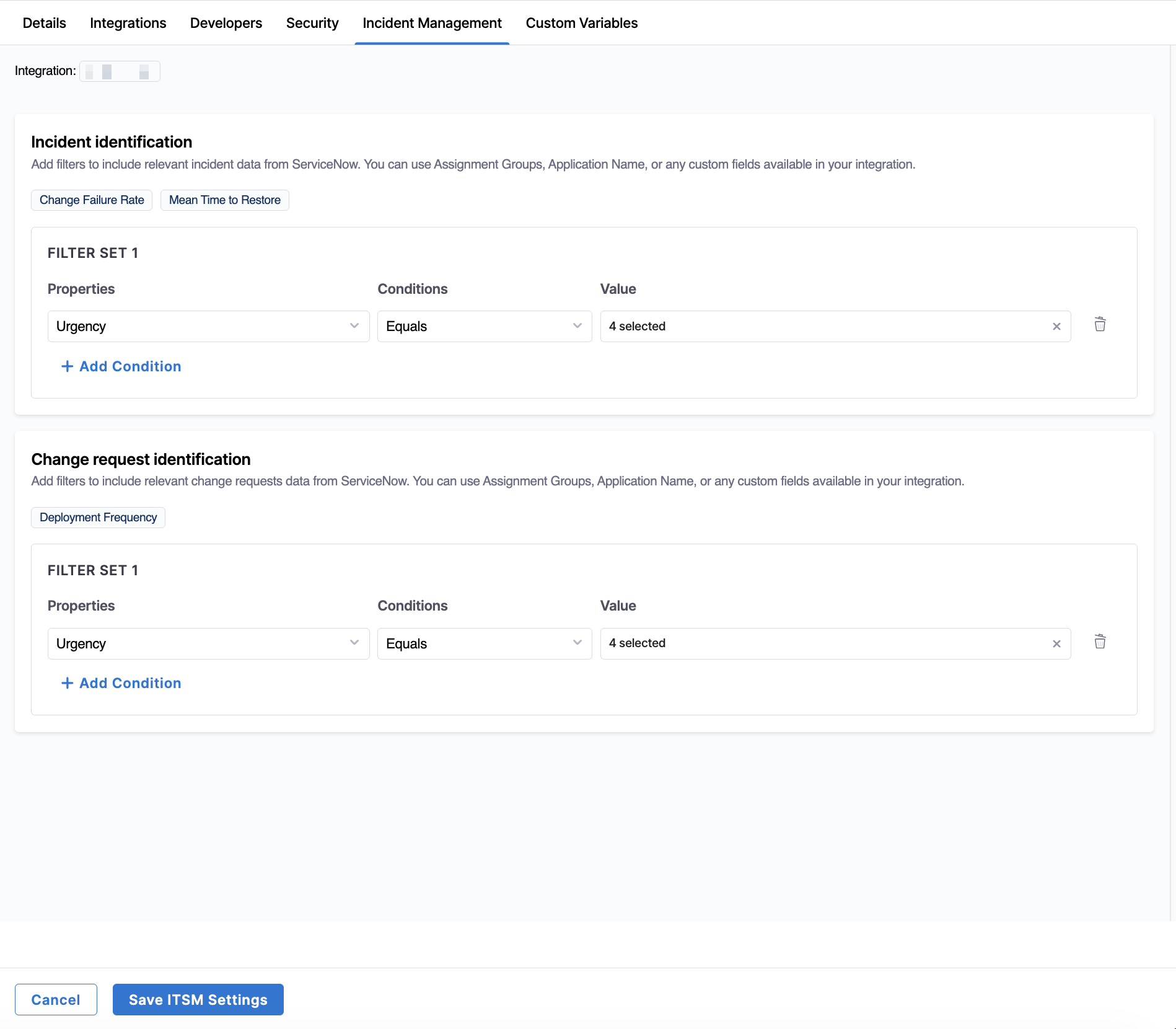
Once configured, these fields are included in data ingestion and become available for filtering and analysis in SEI 2.0.
Integration monitoring
To monitor the status of the ServiceNow integration, navigate to the Monitoring tab. This page displays ingestion logs that provide visibility into data synchronization.
You can click the Filters icon to filter logs by Status (Success, Failed, Pending, or Scheduled).
Each ingestion log includes the following fields:
| Field | Description |
|---|---|
| Scan Range Time | The time window of data retrieved from ServiceNow during the ingestion task. |
| Data Retrieval Process | The ingestion job responsible for fetching data from ServiceNow. |
| Task Start Time | The timestamp when the ingestion task began running. |
| Status | The current state of the ingestion task (for example, Success, Failed, Pending, or Scheduled). |
| Time to Complete | The total duration required for the ingestion task to complete. |
| Retries | The number of times the ingestion task was retried after a failure. |